Hello, I am sumit and currently pursing my final year of graduation with IT stream from JSPM BSIOTR Wagholi Pune. I am currently learning DevOps with TrainWIthShubham. I have prior knowledge of Java, JSP, Servlet, SQL and Data structure also.I am a hard worker, smart and quick learner.
Dockerfile
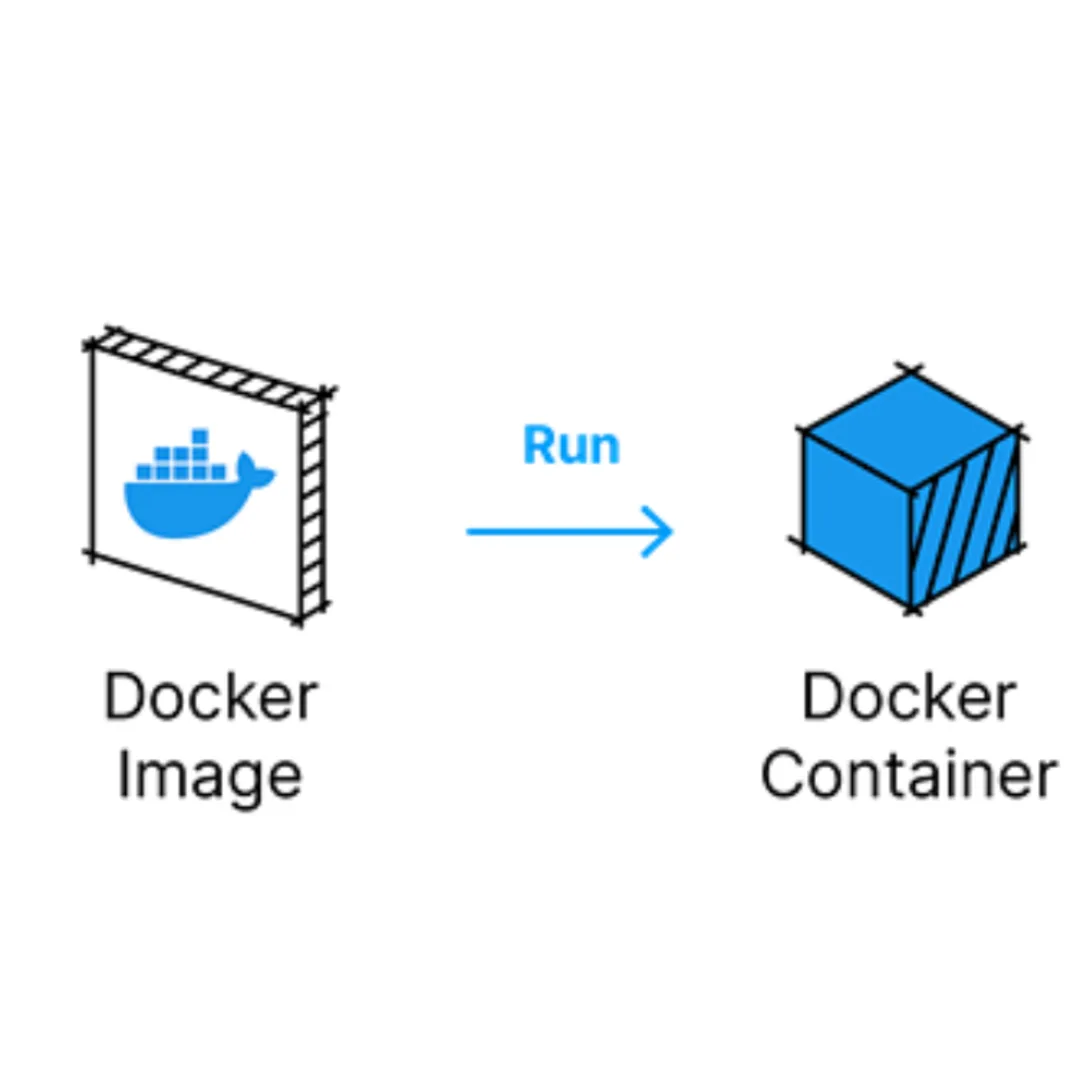
A Dockerfile is a script that contains a set of instructions for building a Docker image. Docker images are the basis for containers, providing a lightweight and consistent environment to run applications. Here is an overview of the common instructions you might find in a Dockerfile:
Basic Structure:
dockerfileCopy code# Use a base image
FROM base_image:tag

# Set the working directory
WORKDIR /app

# Copy files from the host to the container
COPY . .

# Run commands inside the container
RUN command1 && command2

# Expose a port
EXPOSE 80

# Define an environment variable
ENV ENV_VAR_NAME=value

# Specify a default command to run when the container starts
CMD ["executable", "arg1", "arg2"]
Explanation:
FROM:- Specifies the base image from which you are building. It should be the first instruction in the Dockerfile.
WORKDIR:- Sets the working directory for subsequent instructions.
COPY:- Copies files from the host to the container. It takes two arguments: the source (on the host) and the destination (in the container).
RUN:- Executes commands in a new layer on top of the current image and commits the results.
EXPOSE:- Informs Docker that the container will listen on the specified network ports at runtime.
ENV:- Sets environment variables. These values persist in the built image and can be accessed during runtime.
CMD:- Provides defaults for an executing container. It can include an executable, or they can omit the executable, in which case
ENTRYPOINTshould be specified.
- Provides defaults for an executing container. It can include an executable, or they can omit the executable, in which case
Example Dockerfile:
dockerfileCopy code# Use the official Python image as a base image
FROM python:3.9

# Set the working directory
WORKDIR /app

# Copy the requirements file
COPY requirements.txt .

# Install dependencies
RUN pip install --no-cache-dir -r requirements.txt

# Copy the rest of the application code
COPY . .

# Expose port 5000
EXPOSE 5000

# Define the command to run the application
CMD ["python", "app.py"]
In this example:
It uses the official Python image as a base.
Sets the working directory to
/app.Copies the
requirements.txtfile and installs dependencies.Copies the rest of the application code.
Exposes port 5000.
Defines the command to run the application.
To build an image using this Dockerfile, you would run:
bashCopy codedocker build -t my-python-app .
This creates a Docker image named my-python-app based on the instructions in the Dockerfile.
Task:
Create a Dockerfile for a simple web application (e.g. Python app)
Build the image using the Dockerfile and run the container
Verify that the application is working as expected by accessing it in a web browser
Push the image to a public or private repository (e.g. Docker Hub )
let's create a simple Dockerfile for a Python web application using Flask. This example assumes you have a Flask application with a file named app.py and a requirements.txt file listing the dependencies.
Dockerfile:
dockerfileCopy code# Use the official Python image as a base image
FROM python:3.9

# Set the working directory in the container
WORKDIR /app

# Copy the requirements file into the container
COPY requirements.txt .

# Install the application dependencies
RUN pip install --no-cache-dir -r requirements.txt

# Copy the application code into the container
COPY . .

# Expose port 5000
EXPOSE 5000

# Define the command to run the application
CMD ["python", "app.py"]
Building the Docker Image:
Assuming you have the Dockerfile, app.py, and requirements.txt in the same directory, you can build the Docker image:
docker build -t my-python-web-app .
Running the Docker Container:
docker run -p 5000:5000 my-python-web-app
This command maps port 5000 on the host to port 5000 on the container.
Verifying the Application:
Visit http://localhost:5000 in your web browser. If your Flask app is running correctly, you should see the application's output.
Pushing to Docker Hub:
Login to Docker Hub:
docker loginTag the Image:
docker tag my-python-web-app sumitkatkar/my-python-web-app:latestPush the Image:
docker push sumitkatkar/my-python-web-app


